
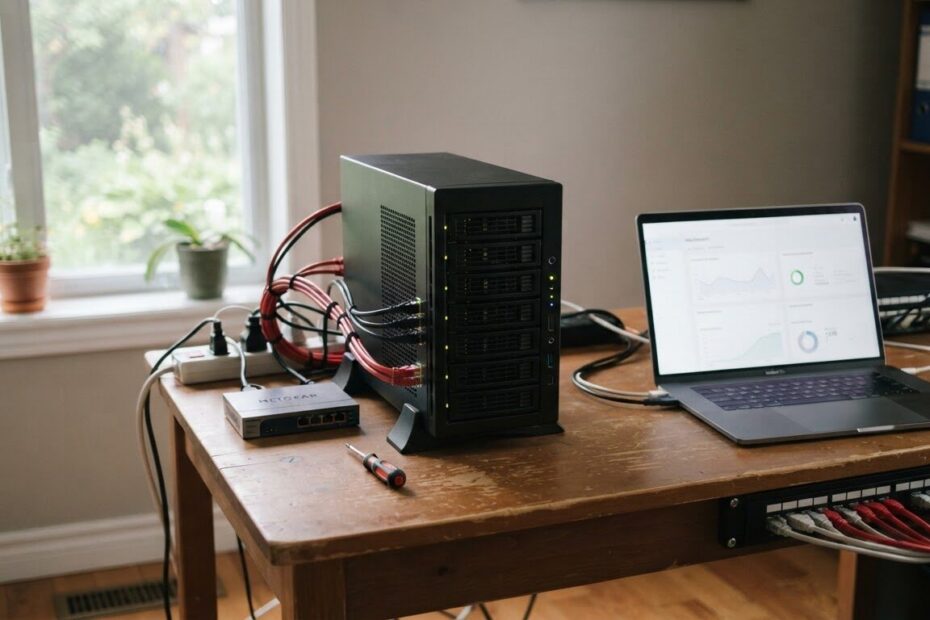
Every growing business reaches the point where its websites, files and tools are spread across too many places. Ours were too. A few small computers ran our sites, an older NAS held our storage and backups, and each machine had its own way of doing things. This autumn we brought it all together on one Proxmox cluster, and we learned a lot doing it.
Here is how we did it, step by step, so you can see what a careful server move looks like and decide whether it makes sense for your business.
Why We Chose Proxmox
Proxmox Virtual Environment is a free, open-source server platform. It runs websites and apps in lightweight containers or full virtual machines, and you manage everything from a web browser. Several machines can join into one cluster, so you see and control them all from a single screen.
It also comes with a proper backup system, Proxmox Backup Server, which stores only what changed since the last backup. For a small business, that combination of no licence fees, one screen and real backups is hard to beat.
Start With an Honest Inventory
Before touching anything, we listed every machine, every site and every drive. For each drive we checked its health report by serial number, not by its drive letter, because drive letters can change after a restart. Some warnings turned out to be old alerts from drives that had already been replaced, and some came from drives that were simply too old to trust. Those were retired.
We also wrote down what depended on what. One surprise: several sites were stored on the NAS over the network, so a problem with that one box could have taken them offline. That told us what to fix first.
Update One Machine at a Time
We brought every existing server up to the current version of Proxmox, one machine per evening, at quiet hours. After each one we checked every website on it before moving on. Going slowly meant that if anything went wrong, only one machine was ever involved.
Add New Hardware the Careful Way
Our newest machine is a modern workstation with a graphics card for local AI. Before it held anything important, we:
- Set up the BIOS for servers: virtualization on, graphics card passthrough ready, and power-on after a power cut.
- Ran a full memory test overnight, because a brand new machine with a memory fault is more common than you would think.
- Installed all updates, then joined it to the cluster while it was still empty, which is how Proxmox expects it.
Move Sites Onto Fast Local Drives
Next we moved the sites that lived on the NAS onto the new machine’s own fast drive. Each move needed a short, planned stop at a quiet hour, and we kept the old copy untouched as a fallback for a week. After every move we checked the pages, the forms, the scheduled tasks and our A.I. answering line before calling it done.
Back Up Without Taking Anything Offline
Our old weekly backup stopped each site while it was copied. We switched to snapshot backups, which copy containers while they keep running, so visitors never notice. Before any big change we also take an extra “bridge” backup to a different machine, so there is always a copy that does not depend on the hardware being changed.
Turn an Old NAS Into a Server
The last step was the NAS itself. Instead of wiping it, we:
- Confirmed that Proxmox could read its existing storage pool as it was, so years of backups did not need copying anywhere.
- Removed the drives it no longer needed, including a cache drive that now runs the system itself.
- Installed Proxmox on it so it can join the cluster, with Proxmox Backup Server moving onto its large, redundant storage pool.
An old box that only stored files is becoming a full server and the new home of our backups.
What We Would Tell Any Business Owner
- Plan first. A written list of machines, sites and drives prevents most surprises.
- Change one thing at a time. Small steps at quiet hours keep your customers from ever noticing.
- Always keep a fallback. Never delete the old copy until the new one has run cleanly for a while.
- Test your backups. A backup you have never restored is only a hope.
- Use an odd number of servers in a cluster so the cluster can always agree on what is running, even if one machine is off.

Want the Same for Your Business?
Everything above is now a service we offer. ONLINEid.ca sets up Proxmox servers, clusters and backups for small businesses, home offices and home labs in Innisfil, Barrie, Simcoe County and the GTA, from $500, hardware not included. We can use the computers you already have or help you choose new ones.
See what is included on our Proxmox Server Setup page, or book a free consultation and we will look at your setup together.