
You finally got a lovely Google review from a regular, and you think, “I wish everyone landing on my website could see this.” Good news: you can. To show Google reviews on your website, you either paste a small piece of embed code (a widget) into a page, use a reviews plugin if your site runs on WordPress, or have a developer pull your reviews in for you.
All of these do the same job: they take the reviews customers already left on your Google Business Profile and display them on your own pages. The best choice depends on how your site is built, how much you want to fiddle with it, and whether you care about it looking like part of your brand. Let’s walk through each option in plain words.
Understand What “Embed Google Reviews” Really Means
When people search for a Google reviews widget or embed code, they usually mean one thing: a block on your website that shows your star rating and your latest reviews, pulled from Google automatically. When a new review comes in, it appears without you copying and pasting anything.
That is different from a screenshot. A screenshot is just a picture. It does not update, it cannot be read by search engines, it looks fuzzy on a phone, and it never grows as you collect more reviews.
Why It Matters for a Local Business
Think about how a neighbour in Innisfil, Barrie or Orillia decides where to go. Most people check Google first, then click through to your website to see if you look real. If your website is silent about what customers say, they have to go back and hunt for it. Reviews on your own pages answer the question right where the decision is being made.
What a Review Display Does Not Do
Putting reviews on your site does not add new reviews to Google, and it does not change your rating. It simply shows what is already there. If you want more reviews, that is a separate job, and it starts with asking happy customers.
Choose the Way to Add Google Reviews to Your Website
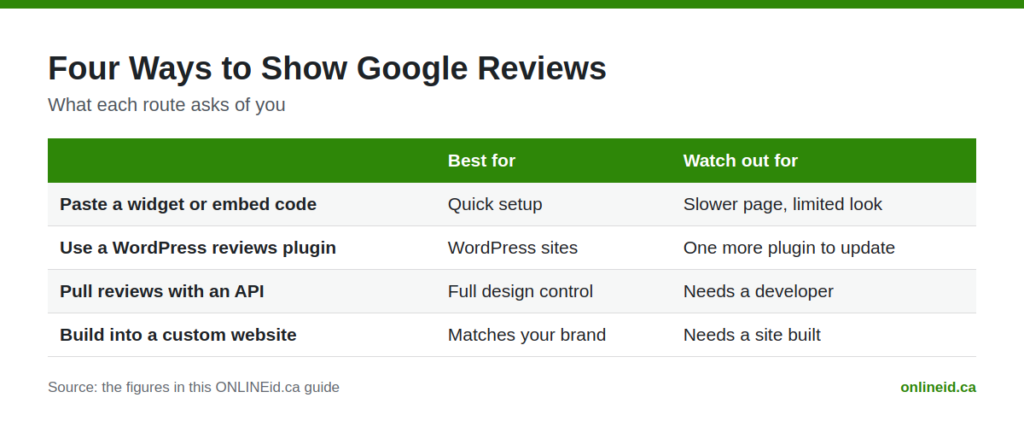
There are a few ways to do this. None is magic. Each trades off cost, control and effort.
Paste a Widget or Embed Code Into Your Page
Many tools give you a short snippet of code. You paste it into a custom HTML block or an embed area on your page, save, and the reviews appear. This is the quickest route if your site builder lets you add code.
The catch is that the snippet usually loads from someone else’s server. That can slow the page a little, and the look is often limited to whatever styles the tool offers. If the tool changes its plan or shuts down, your reviews block can vanish overnight.
Use a Reviews Plugin on WordPress
If your site runs on WordPress, a reviews plugin can place a Google reviews block anywhere using a shortcode or a block. You connect it to your business, pick a layout, and drop it in. It is easier than hand-written code, and you can usually match your colours.
Be careful with the number of plugins you stack up. Every extra plugin is one more thing to update and keep secure. Choose one that is actively maintained, and remove it if you stop using it.
Pull Reviews Straight From Google With an API
Searches for a “Google review widget API” come from people who want full control. Google provides ways for developers to request business details and reviews, but it takes a developer, a key tied to your account and careful setup. You also need to follow Google’s rules about how reviews are shown and credited.
This route gives the best design freedom and the cleanest result, but it is not a weekend project for most owners. If that is where you are heading, it is usually worth having someone build it once and look after it.
Have It Built Into a Custom Website
On a custom site, reviews can be part of the design from the start instead of a bolt-on. They match your fonts and colours, load quickly and sit exactly where you want them. That is the approach we take at ONLINEid.ca, and we say more about it below.
Check a Free Google Reviews Widget Before You Trust It
A free Google reviews widget is tempting, and for a quick test it can be fine. Before you put one on your home page, ask a few simple questions.
- What is limited? Free versions often cap how many reviews show, how often they refresh, or how many pages can use them.
- Is there branding? Some free widgets add a small badge or link back to the tool. That may not suit your brand.
- Does it work on a phone? Open your page on your own phone. If the block is cramped, scrolls sideways or pushes your buttons down, customers in a hurry will leave. Our post on why websites fail on phones covers what to look for.
- Who controls it? If your reviews live in someone else’s account, you depend on that account staying open and free.
- Is it readable by search engines? Some widgets draw reviews in a way that is hard for Google to read. Text that is part of your page is generally better than text trapped in a frame.
None of this means free is bad. It means you should treat a free widget as a trial, not a permanent foundation for your business website.
Place Your Reviews Where Customers Decide
Having reviews on the site is one thing. Putting them in the right spots is what makes them useful.
Start With the Home Page
Show your star rating and two or three recent reviews a short scroll down from the top, after you have said what you do and where. A visitor from Cookstown or Newmarket wants to know quickly, “Are these people good?”
Add Reviews Near Your Calls to Action
Put a short review right beside your booking button, quote form or phone number. That is the moment someone hesitates. A line from a real customer can nudge them to go ahead.
Match Reviews to the Service Page
If you offer several services, show reviews that mention the service on that page. A plumber, a groomer or a dentist benefits from this far more than a single mixed list on the home page. If you are still organizing your offers, our guide to a simple service menu page is a good companion.
Keep It Short and Tidy
A long wall of reviews is tiring. Show a handful, give a link to read the rest on Google, and move on. Clean beats crowded.
Get Your Google Business Profile Ready First
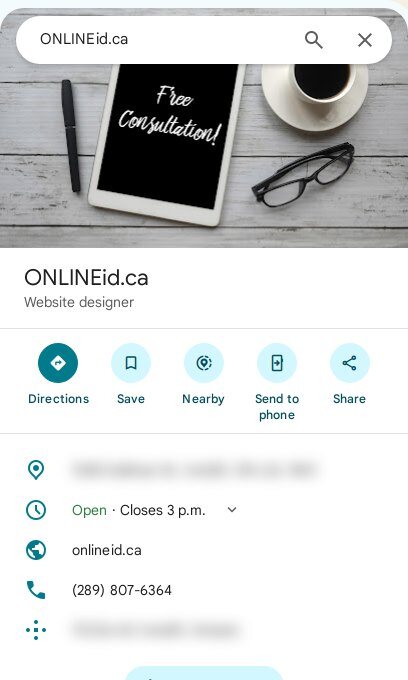
A reviews widget can only show what exists. Before you embed anything, make sure your profile is complete, correct and found by the people nearby. Your name, address, phone number, hours and website link all need to be right, because the reviews are attached to that listing.
If you are not sure where your profile stands, start with our Google Business Profile help page. It explains the basics in plain language.
Not on Google Yet?
If customers cannot find you on Google or Maps, there are no reviews to show. Our Google Placement is $99, and it puts your business, contact details and website onto Google and Maps. You can read more on our Google Placement and SEO services page, or see why it matters in this post on getting your Simcoe County business on the map.
Ask for Reviews the Honest Way
Ask happy customers when the job is fresh, make the link easy to tap, and thank people who write one. Never offer money or gifts for a good rating. Google can remove reviews that break its rules, and customers can smell a fake from a distance. Our list of common mistakes with online reviews shows what to avoid.
Let ONLINEid.ca Show Your Reviews for You
If you would rather not wrestle with code, plugins or keys, we can do it. Our Google Reviews add-on is $150, and it shows the business’s own Google reviews on its website. We never write, buy or filter reviews. What your customers wrote on Google is what appears on your site.
That last point matters. A reviews block is only worth having if people can trust it. When it is a true picture, including the occasional four-star comment, it comes across as honest, and honest is what wins local trust.
What Fits With It
The add-on works well alongside the rest of what we offer. You can see everything, with prices, on our services and pricing page. If you do not have a site yet, we build custom websites with no generic templates, so reviews can be designed in from the start, and we look after hosting and maintenance so you are not left wondering who to call when something breaks.
We serve Innisfil, Alcona, Lefroy, Cookstown, Bradford West Gwillimbury, Barrie, Orillia, Aurora, Newmarket and the wider GTA, so if you are in Simcoe County or just south of it, we are close by.
Keep Your Reviews Block Healthy Over Time
Adding the block is not the end. A little care keeps it working in your favour.
- Check it now and then. Visit your own site on a phone and a computer every few weeks and make sure the reviews still show.
- Reply on Google. Answer reviews, good and bad, politely and briefly. Customers read how you respond.
- Keep the page fast. If your site feels slow after adding a widget, take it as a sign to try another method.
- Keep other details current. Reviews pair with correct hours and contact details. Our post on opening hours that win or lose customers is a quick read.
Questions Owners Ask
Can I put Google reviews on my website for free?
Often, yes, with a free widget or plugin. Just check the limits, any branding that comes with it, and how it looks on a phone. A free tool is fine to test, but make sure you are comfortable relying on it before it sits on your main pages.
Do I need to know HTML to embed Google reviews?
Not always. If your site has a place to paste embed code, you only need to copy and paste it into the right block. If you are not comfortable doing that, or your site does not allow it, ask someone to set it up for you so it does not break your layout.
Will my reviews update by themselves?
A properly connected widget, plugin or custom build refreshes from Google, so new reviews appear without you doing anything. A screenshot or typed-out copy will not update, which is why we do not recommend them.
Can I show only my good reviews?
We do not recommend filtering. Customers trust a mix, and hiding reviews can feel misleading. At ONLINEid.ca we never write, buy or filter reviews. A better plan is to reply kindly to a poor review and keep earning better ones.

Book a Free Consultation
If you want your Google reviews on your website without the guesswork, we are happy to help. A team member will look at your business, talk it through with you and make a plan that fits. Book a free consultation with ONLINEid.ca, or call our A.I. answering line at (289) 807-6364, which answers any time and puts you through to the team.