
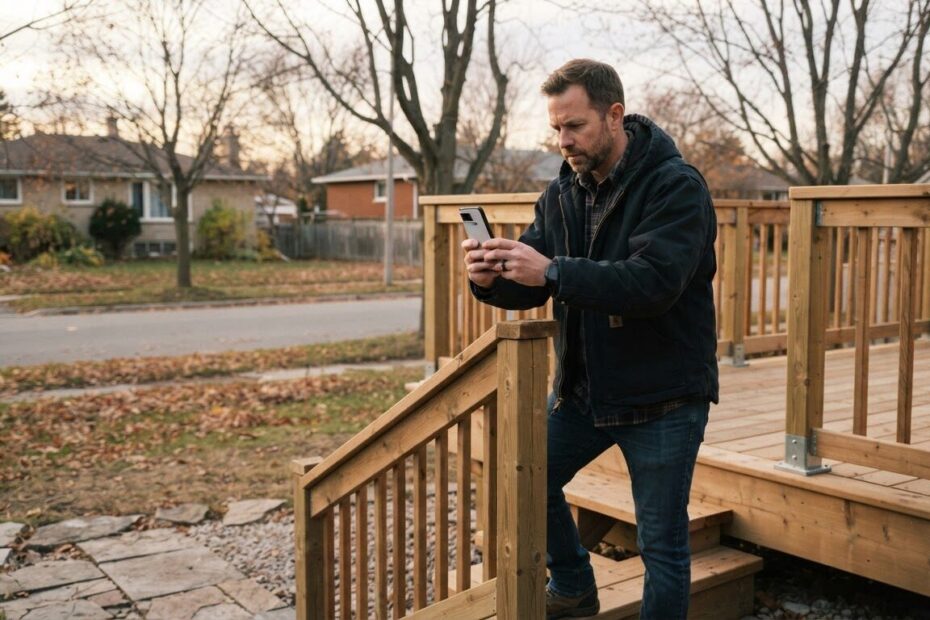
It is a Tuesday afternoon in late fall. You have just finished a job, you snapped a few photos on your phone, and you uploaded them to your website in five minutes between calls. They look great on the screen, so you move on with your day.
The trouble is that Google does not see a photo the way you do. It reads the file name, the description behind the picture and the words around it. Good website image alt text is one of the simplest ways to tell Google and AI search what your business actually does, and it also helps anyone using a screen reader.
Here are six image mistakes we see on local business sites around Innisfil, Barrie and the rest of Simcoe County, and a simple fix for each one.
1. Leaving Website Image Alt Text Blank
Alt text is a short written description attached to an image. If it is empty, the picture is basically invisible to search engines, and a person who cannot see the screen hears nothing at all.
Many owners never fill it in because it does not show on the page. It sits behind the scenes, so it feels optional. It is not.
The fix: Describe the photo in one plain sentence, the way you would to a friend on the phone. For example: “Technician installing a new furnace in a home in Alcona.” Say what is in the picture, and add the town or service only when it is true and natural.
2. Stuffing Alt Text with Keywords
Once owners learn alt text matters, some swing too far. They write things like “plumber Barrie best plumber cheap plumber Simcoe County plumbing services.” It reads badly and it does nothing useful for a customer.
Google is good at spotting a pile of repeated words. A screen reader will read the whole mess out loud to someone who just wants to know what the photo shows.
The fix: Keep each description short, usually a single sentence. Write for a person first. If the photo shows a freshly painted kitchen in Cookstown, say that, and leave the keyword list out.
Also skip starting every line with “image of” or “photo of.” The reader already knows it is a picture.
3. Uploading Photos with Camera File Names
Phones name files things like IMG_4821.jpg or Screenshot-final2.png. Those names tell Google nothing, and when you have fifty of them it is hard for you to find the right one later too.
The file name is one of the first clues about what a picture contains. It takes a few seconds to improve before you upload.
The fix: Rename each file with a few plain words separated by hyphens, such as deck-build-innisfil.jpg or fresh-sourdough-loaves.jpg. Use lowercase, skip spaces and keep it short. Make it a habit to rename the photo before it ever touches your website.

4. Using Stock Photos Instead of Your Real Work
A smiling team around a laptop might fill a blank space, but it is not your team. Customers in Bradford West Gwillimbury or Orillia can usually tell, and it quietly weakens trust before you have said a word.
Real photos also show Google and AI search that a real business with a real location stands behind the page. We talk about that idea more in 7 Mistakes You’re Making with AI Content (And How to Show Google You’re a Real Local Pro).
The fix: Photograph the real thing: your storefront, your van, your crew at work, finished jobs, the dish people order most. You do not need fancy equipment. Good daylight, a clean background and a steady hand go a long way, and a phone is plenty.
Use the same photos on your Google Business Profile so the two match. Our post 7 Mistakes You’re Making with Your Google Business Profile (And How to Fix Them for AI Search) covers that side in more detail.
5. Uploading Huge Files That Slow the Page
A phone photo can be several megabytes. Put six of them on one page and your site can crawl, especially for someone checking it on a phone with a weak signal out on a country road past Lefroy.
Most people search on their phone first, and they will not wait around for a slow page. A slow page can also make the whole site feel unprofessional.
The fix: Resize photos before you upload them. A picture rarely needs to be wider than the space it fills on the page. Save it in a web-friendly format and compress it so it stays sharp without carrying extra weight. If that sounds like a chore, it is something a developer can set up once so every new photo is handled automatically.
6. Putting Important Information Only Inside an Image
This one is very common. A menu, a price list, your hours or a seasonal special gets saved as a flyer image and dropped onto the page. It looks nice, but the words inside are just pixels to a search engine.
That means Google cannot read your prices, AI search cannot quote your hours, and someone using a screen reader gets nothing. It is also hard to read on a small phone screen.
The fix: Type the important details as real text on the page, and use the image as a bonus. If you do keep a flyer picture, repeat the key points in the text beside it and describe the flyer in the alt text. Real text is easy to update too, which matters when your hours change for the holidays.
Make a Simple Image Checklist You Can Repeat
You do not have to fix everything in one afternoon. Start with the pages customers see most, usually the home page, your main service pages and your contact page. Then make this checklist part of every upload from now on:
- Rename the file with a few plain words and hyphens.
- Resize and compress it so the page stays quick.
- Write the alt text as one honest sentence about what the photo shows.
- Check the words nearby. A short caption or a paragraph that matches the picture helps everyone understand it.
- Use your own photos wherever you can.
It adds maybe a minute per photo. Over a year, that adds up to a site that is clearer for customers, easier for Google and AI search to understand, and more accessible to people who rely on screen readers.
If your site was built on a generic template, some of these settings can be awkward to find or change. That is one reason we build custom websites and look after hosting and maintenance, so images are set up properly from the start. You can see how we work on our Services & Pricing page.
Book a Free Consultation and Get Your Photos Working for You
Your photos already show the quality of your work. The next step is making sure Google and your customers in Innisfil, Newmarket, Aurora and across the GTA can understand them.
If you would like a second set of eyes on your site, book a free consultation with ONLINEid.ca. A team member will look at your business, talk through your images and put together a plan with you. You can also call our A.I. answering line any time at (289) 807-6364 and we will put you through to the team.