
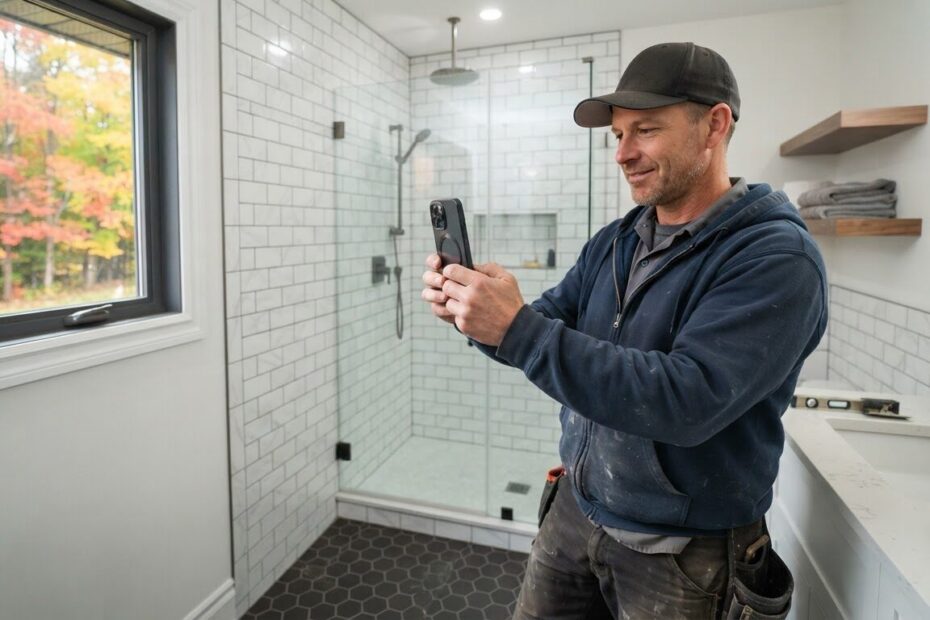
You finish a bathroom renovation in Alcona, a client leaves the salon with a colour they love, or the kitchen sends out a perfect plate on a busy Friday night. Everyone is happy, you snap a quick photo, and it sits on your phone between a hundred other pictures. Three months later a new customer asks, “Do you have any examples of your work?” and you start scrolling.
A simple website photo gallery fixes that. It shows real work, from real customers, in real Ontario towns, and it works for you while you are busy doing the job. This guide walks you through planning, taking, organizing and publishing your photos, step by step, without a big time commitment.
Why a Website Photo Gallery Beats a Social Media Feed
Social media is great for quick updates, but posts get buried and you do not control how they are shown. A gallery on your own website stays put, loads the way you want, and sits right next to your services, prices and contact details.
Most people look at a business on their phone before they call. Seeing proof of your work in that moment builds trust faster than a paragraph of text. It also gives you a place to mention the towns you serve, which helps local customers in Innisfil, Barrie, Bradford West Gwillimbury and beyond see that you work near them.
Step 1: Plan the Shots Before You Pick Up Your Phone
The best galleries are planned, even if only a little. Decide what you want a stranger to understand in five seconds. For a contractor it might be “clean, careful work.” For a salon it might be “natural-looking colour.” For a gym it might be “friendly, motivating space.” For a restaurant it might be “generous plates and a welcoming room.”
Then make a short shot list for each type of job or service. Keep it simple:
- Trades: the space before you start, one or two mid-job shots, and the finished result from the same spot.
- Salons: the starting point, the finished style from the front, and one from the side or back.
- Gyms: the equipment floor, classes in action (with permission), and a clean, empty space ready to go.
- Restaurants: signature dishes, the dining room, and the team at work.
Step 2: Take Photos That Look Honest and Consistent
You do not need fancy gear. A modern phone is plenty. What matters is consistency, especially for before-and-after pairs.
Match the angle and the light
Stand in the same spot for both shots, hold the phone at the same height, and use the same orientation. Turn on the lights or open the blinds in both photos so the difference comes from your work, not the lighting.
Clean up the frame
Move stray tools, coffee cups and garbage bags out of the shot. Wipe the lens with your shirt. Shoot a few extra frames, because you will thank yourself when choosing the best one.
Shoot wide, then close
One wide shot shows the whole result, and one close-up shows the detail, like a tight tile line, a clean fade or a crisp sear. Together they tell the full story.

Step 3: Ask Customers for Permission the Easy Way
Real photos of real customers are powerful, so always ask first. Make it part of your normal routine, not an awkward extra. The best time to ask is when the customer is happy: at the final walkthrough, at the end of an appointment, or when they compliment the result.
A short, friendly message in writing works well. You can send it by text or email, or add a line to your invoice or booking form:
“We loved working on your project. Would it be okay if we shared a few photos of the finished work on our website? We will not include your name or full address, and you can ask us to remove them any time.”
A few good habits go a long way:
- Keep the reply. A saved text or email is a simple record that they said yes.
- Leave out house numbers, street signs, licence plates, family photos on walls and anything personal.
- Skip faces unless the person has clearly agreed. For gyms and salons, always get a clear yes before showing a member or client, and be extra careful with children.
- If someone asks you to remove a photo, do it promptly and politely.
If you are unsure about the legal side of using customer images, speak with a professional adviser. This guide is about good practice, not legal advice.
Step 4: Organize and Name Your Files Properly
This is the step most owners skip, and it is the one that saves the most time later. Create one folder on your computer or cloud storage called “Website Gallery,” with a subfolder for each service or job type.
Then rename each photo before you upload it. Phone names like IMG_4821.jpg tell nobody anything. A clear name helps you find the file later and gives search engines a helpful clue about what the picture shows.
- Use lowercase and hyphens: deck-rebuild-before-innisfil.jpg
- Say what it is, then where: balayage-colour-after-barrie.jpg
- Mark before and after clearly: add “before” or “after” so pairs stay together.
- Skip spaces and odd symbols, which can cause trouble on a website.
Before you publish, shrink oversized phone photos. Huge image files slow a page down, and slow pages frustrate people on their phones. If you are not sure how to do this, it is one of the things we can handle for you.
Step 5: Write Captions That Mention the Town
A caption turns a nice picture into useful information. Keep it to one or two sentences and answer three questions: what was done, what was special about it, and where.
- “Basement bathroom refresh in Lefroy: new tile, a wider vanity and brighter lighting.”
- “Soft copper colour and a fresh cut for a client visiting our Cookstown chair.”
- “Saturday morning small-group class at our Innisfil gym.”
- “Our house-made dessert plate, served in Orillia on a snowy night.”
Write like you talk. Avoid stuffing in every town you can think of. Name the real place where the work happened, and your gallery will naturally build up a picture of where you serve. If you want to go deeper on this, our guide on integrating local SEO with your website design explains how the pieces fit together.
Do not forget alt text, the short description that helps screen readers and tells search engines what a photo shows. Describe the picture plainly, like “finished white kitchen with new cabinets in Newmarket.”

Step 6: Publish a Gallery That Is Easy to Browse
Now put it all on your site. A good website photo gallery is simple and does not make people hunt.
Group by service, not by date
A visitor looking for a deck builder wants to see decks, not a mix of everything. Use clear groups such as “Kitchens,” “Colour,” “Group Classes” or “Our Dishes.”
Show before and after side by side
Place each pair together with a short caption, so the change is obvious at a glance. On a phone, stacking them one above the other works well.
Add a clear next step
Place a call button or a link to your contact or booking page near the gallery. Someone who has just seen great work is ready to take action, so make it easy. If you take bookings, our guide on integrating an online booking system with your website shows how to connect the two.
Check it on your phone
Open the page on your own phone before calling it done. Do the images load quickly? Are the captions readable? Can you tap through easily? If not, fix it now, not later.
Step 7: Keep Your Gallery Fresh Without Extra Work
A gallery with three photos from years ago looks forgotten. The good news is that freshness takes small habits, not big projects.
- Take the photo during the job. Make the before shot part of your first visit and the after shot part of your wrap-up.
- Use one phone album. Move your best shots into an album called “Website” at the end of each day.
- Set a ten-minute weekly slot. Pick the one or two best photos, rename them, write captions and add them.
- Follow the seasons. Show fall cleanup, winter comfort food, spring decks or summer colour, so the gallery feels current.
- Retire the weak ones. Quality beats quantity. Remove blurry or dated photos.
If even ten minutes a week feels like too much, that is completely normal. Many owners prefer to send their photos to someone who will take care of it.
Let ONLINEid.ca Set It Up and Look After It
At ONLINEid.ca we build custom websites for businesses in Innisfil, Simcoe County and across the Greater Toronto Area, from Barrie and Newmarket to Aurora and Toronto. That includes a gallery designed around your trade, your look and your customers, with no generic templates.
We can set up the layout, size and organize your photos, and add the captions and alt text. We also handle hosting and maintenance, so your site stays fast and secure. A Simple Website starts from $500 setup, and you can see everything on our Services & Pricing page.
If you want customers to find you on Google and Maps too, our Google Placement service is $99. It puts your business, contact details and website onto Google and Maps, so the people who see your listing can click through to your gallery.
Start with the first job you finish this week. Take the before, take the after, ask permission, and you already have the first entry in a gallery that grows with your business.

Ready to show off your best work online? Book a free consultation with ONLINEid.ca at https://onlineid.ca/contact/. A team member will look at your business and make a plan with you, or you can call our A.I. answering line any time at (289) 807-6364 and we will put you through to the team.